I mentioned my
HipsterPDA the other day, but the more important half of my re-organisation was getting Gmail sorted so that I could properly capture everything I am doing in there, thus relying on it being always available, despite
signs of it not being always reliable.
Other people have blogged about using GTD with Gmail, and even
written a whitepaper, others
have gone further using the filters in Gmail, however they have not taken advantage of the Mozilla/Firefox extension called
Greasemonkey.
Now
Greasemonkey is truly evil (in the best possible way). Basically it allows you to run Javascript from your own set of user scripts on a page before it fully loads. Some
user scripts are intended to be run on every page and wipe out ads, or particular types of text (e.g. swearwords), or killing frames. Others are customised to particular sites, for example allowing you to
add del.icio.us tags to your blog posts in Blogger, or remove ads and multi-page annoyances from the SMH website. There are a set of user scripts created for Gmail that I found particularly useful:
The only problem I had with the
Power Gmail tweaks script was that it had the search bar showing after the labels, which for me always placed it below the fold. In order to rectify that, you simply need to edit the script and change this line:
  getNode("nav").insertBefore(searchesBlock,
labelsBlock.nextSibling);
... to this:
  getNode("nav").insertBefore(searchesBlock,
labelsBlock);
But enough ado about nothing, how does it actually come together?
Getting Things Done (GTD)
with Gmail and Greasemonkey
Bryan Murdaugh's whitepaper on
Getting Things Done with Gmail is a good starting point as he discusses why you would use Gmail in this way, and covers GTD in general for those rusty or unfamiliar with it. Here is my brief take on it, assuming you are familiar with
GTD.
Firstly you use labels to store all emails relating to projects, and general reference material. Secondly you also use labels to identify the context of the next action related to that email. Thirdly you Star emails that are current deferred Next Actions, and delegated ones get labelled with a "Waiting For" label. You send emails to yourself whenever you need to capture a deferred Next Action, delegated item or some reference material (like a set of links, a quote, or a PDF article). Lastly you leave a Next Action item unread if you want to prioritise it over other Next Action items with the same context.
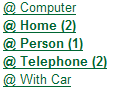
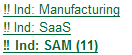
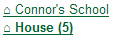
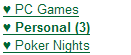
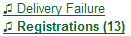
Better LabelsThis is all well and good, but as anyone who has used Gmail will realise, the problem quickly becomes how to sort these labels into meaningful order. I started with the idea of using prefixes for each type of label. "Project:" for projects, "Ref:" for reference and so on, with perhaps "@" for context labels. I quickly ended up with ones like "Ref: Ind: Venture Capital", which is just too long and unwieldy. A web design post covering how to get funky looking text bullet points using unicode inspired a more visually interesting set of labels.
Context labels:
Waiting For label:

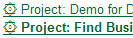
Project labels:
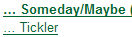
Someday/Maybe and Tickler labels:
Corporate reference:

General reference labels:
Household reference labels:
Personal reference labels:
Catch-all special labels:
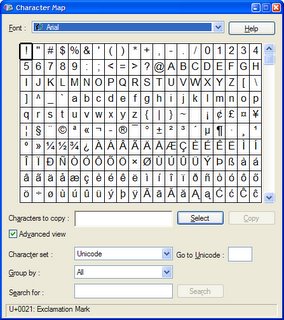
You can use the

utility in Windows to get what you want. The first set for a given font (Arial in this case) will show reasonably standard characters:
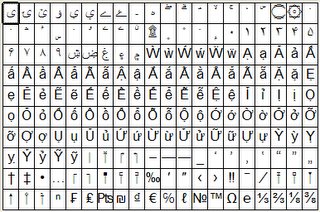
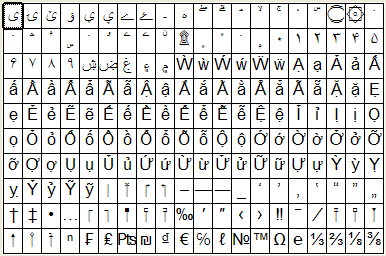
Scroll down and some more interesting ones soon appear:
 Finding Urgent Items
One of the problems with Gmail is that it does not allow sorting within a particular label, just searches. I mentioned above that I leave urgent Next Action items marked as unread in order to show them as urgent. That is OK, particularly given the power of some of the special searches which allow me to identify unread or starred items with a particular label.

However, it is a real pain trying to do that search every time you need it. One idea I had was to use
del.icio.us to store bookmarks of these searches, then subscribe to the RSS feed for a special tag that marked those bookmarks, and place that feed onto my browser's bookmarks toolbar. This only works in Mozilla Firefox, but it's a little too roundabout to get what I want. The URL looks a bit like this:
http://mail.google.com/mail/?search=query&
view=tl&start=0&init=1&fs=1&q=is%3Astarred%20
label%3A%40-Home
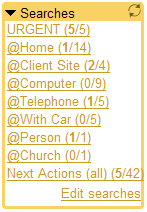
This is where the user
Power Gmail tweaks and
Gmail conversation preview scripts really became useful. Power tweaks allowed me to have saved searches within Gmail, like the one at right, and more importantly it uses a special contact record to store the searches in Gmail, so I can access them from any computer (provided it has Greasemonky and the right user script).
You can see that I've used it to show me Next Actions for certain contexts, as well as all urgent ones (marked unread) and all Next Actions (which is really just like my Starred label, except it shows how many I have). The preview user script allows me to look at a conversation and then leave it marked as unread, which means I don't stuff up my urgent list when checking what I have to do for each one.
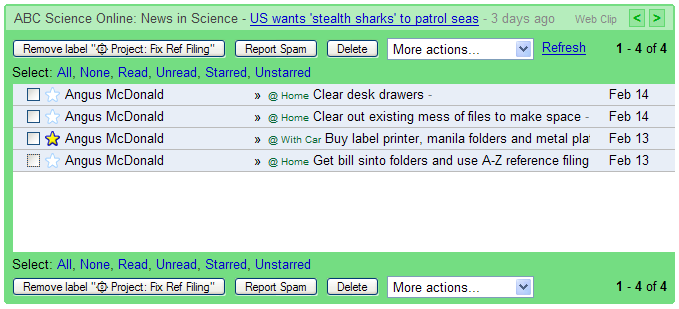
Sample ProjectTo save you imagining what one of my project labels might look like, here is one I am able to share with you, which is my preparing my home office filing system for GTD:
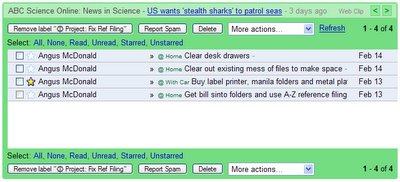
You can see that there are multiple actions, one of which is the selected Next Action. It is marked as read, so it is not an urgent item, but it will appear in my overall Next Action lists, as well as the one for when I next have the car.
Word of WarningRemember I said that
Greasemonkey is evil? The power it brings to bear is amazing, but the downside is that you could truly stuff yourself up by installing a malicious user script, or even just by badly hacking a reasonably benign one. Having some familiarity with Javascript is essential to be sure you are secure, or you must place your trust in sites like
userscript.org that (hopefully) have Javascript gurus reviewing and checking the scripts out.


 utility in Windows to get what you want. The first set for a given font (Arial in this case) will show reasonably standard characters: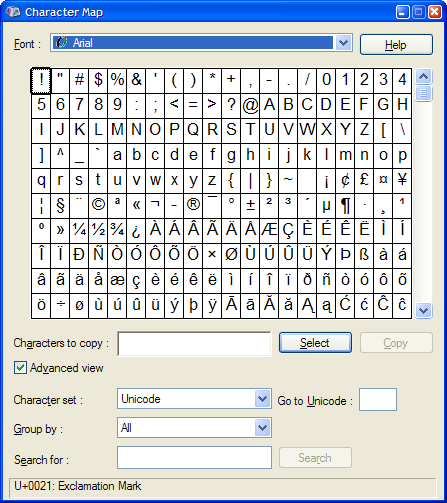
 This is where the user